Overview
In Brightspace, badges are part of the Awards tool. You can award students badges (and sometimes certificates) based on specific criteria, such as completing a module, scoring above a specified threshold, or fulfilling all the requirements in a unit
What is a Badge?
A badge in Brightspace is a small digital marker of achievement that students earn as they progress through your course.
Badges work well for:
- Encouraging students as they complete modules or activities
- Highlighting key milestones (e.g., finishing Unit 1, earning an 80%+ on a quiz)
- Supporting motivation and engagement with visual rewards
- Helping students track their own progress
Think of a badge as a “Congratulations, you did it!” moment inside your course.
Instructors don’t need to award badges manually. Brightspace can automatically issue them when you define the criteria.
How Badges Work in Brightspace
Badges are part of the Awards tool in your course.
(For students, they can access Awards from their Brightspace homepage nav bar, or by selecting their profile avatar at the top right corner and selecting Profile)
The process has two simple steps:
Step A: Add or Create a Badge
- Navigate to Tools → Awards
- On the Awards page, select the Course Awards tab
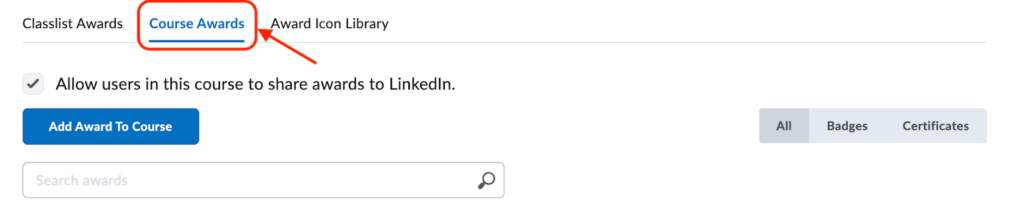
- Select Add Award to Course, then
- Choose an existing badge from the list and select Add, or
- Select Create to make your own:

- Enter Name, Description, Criteria, Image (.png, minimum 200×200 px)
- Set Availability (share within this course/offerings)
- Set Expiry if needed (Never, Fixed date, or Relative)
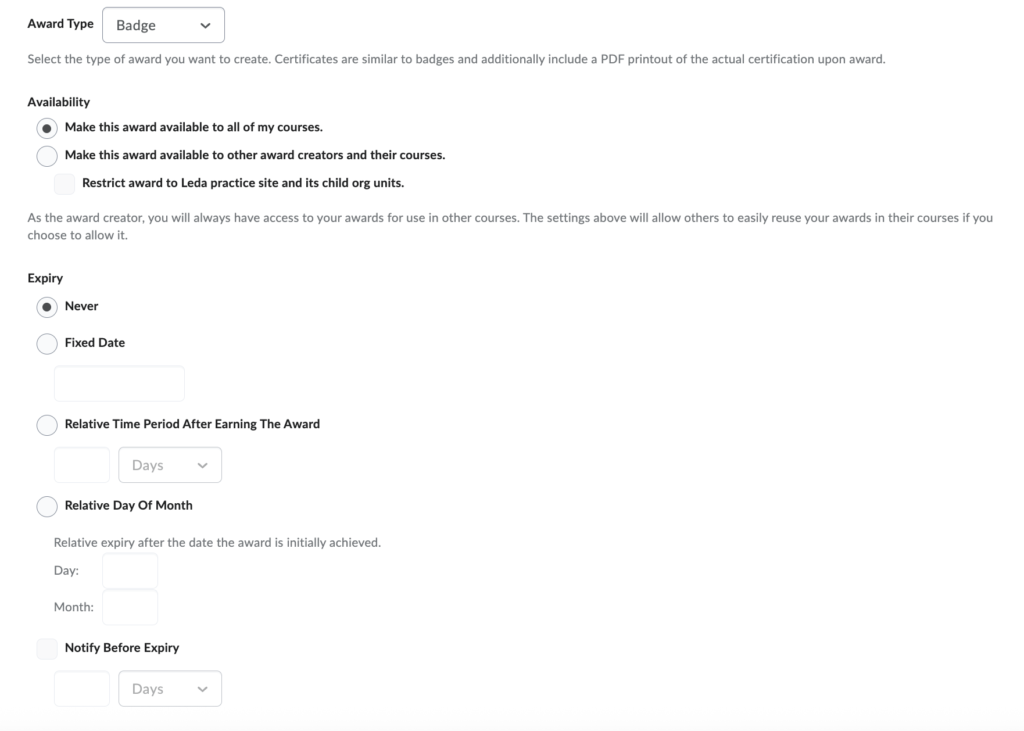
Step B: Set What Triggers the Badge
Once your badge is created, you decide when students should receive it.
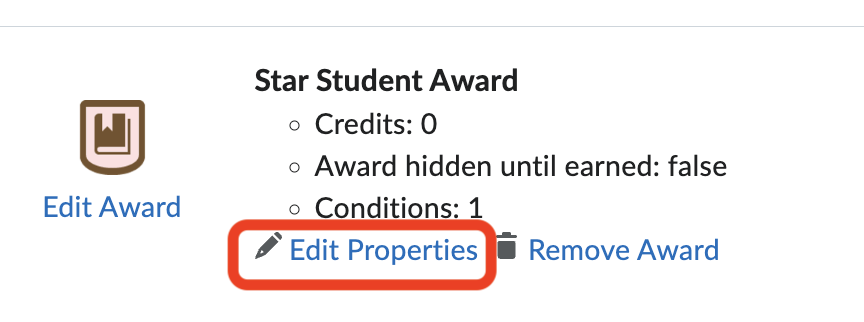
- On the Course Awards tab, select Edit Properties under the badge.
- Under Release Conditions, select Create.
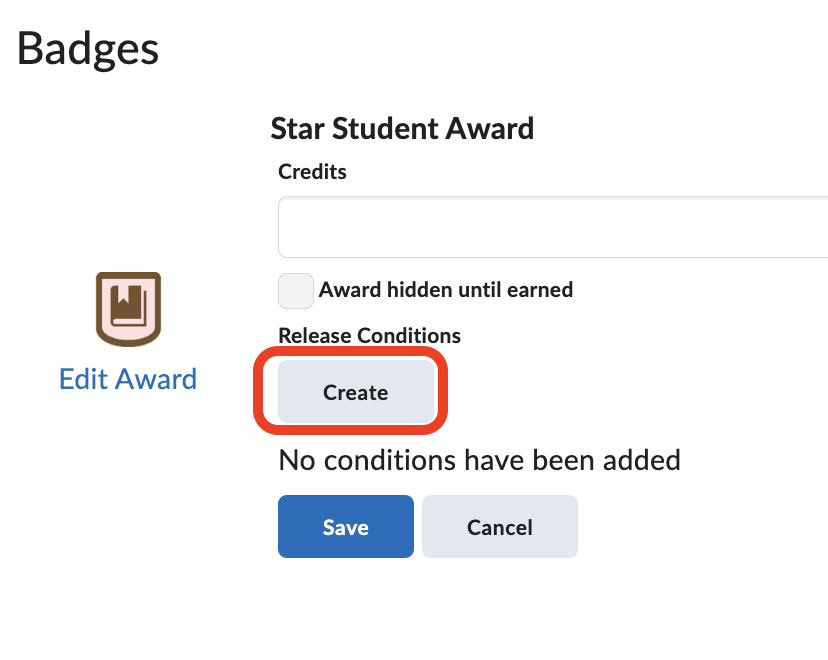
- Choose a condition type from the drop-down menu, then enter the condition details to define the trigger.
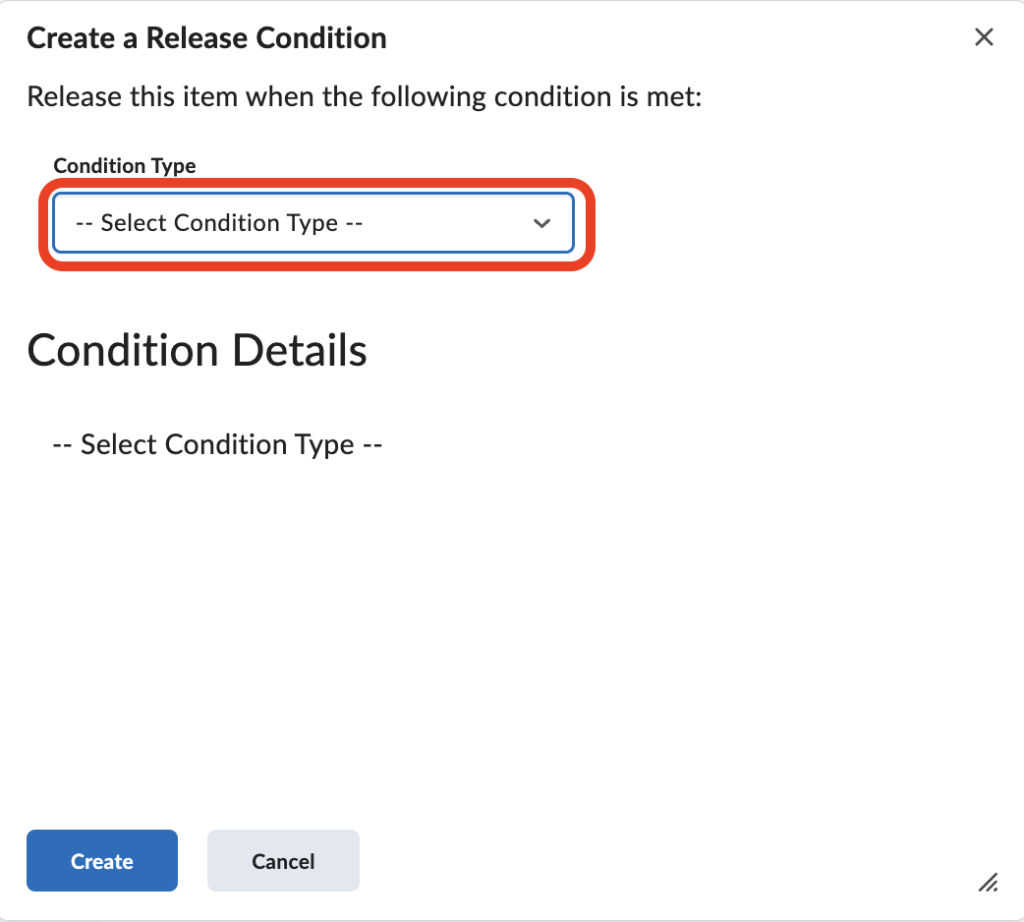
- Save your changes.
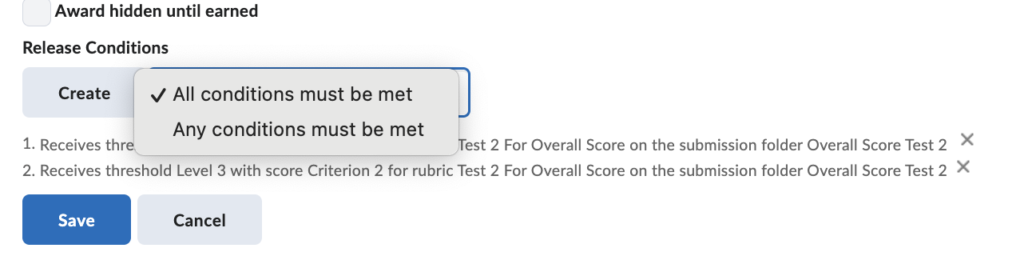
Note: You can add multiple release conditions to a single badge. When more than one condition is set, you can choose whether all conditions must be met or any one condition can be met for the badge to be awarded.
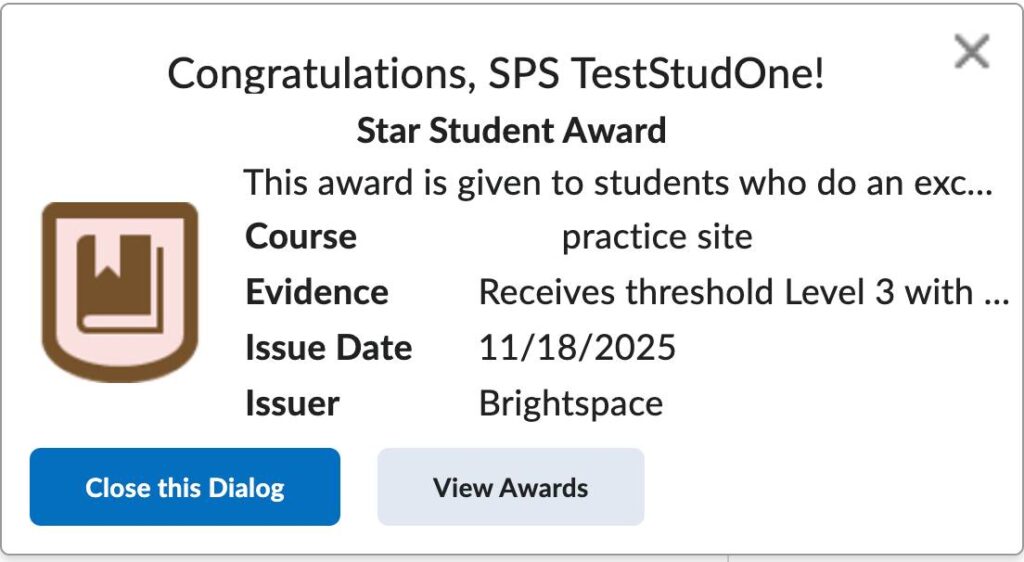
What Students See
Students can view their badges by:
- Receiving a notification in the Notifications area in Brightspace, or
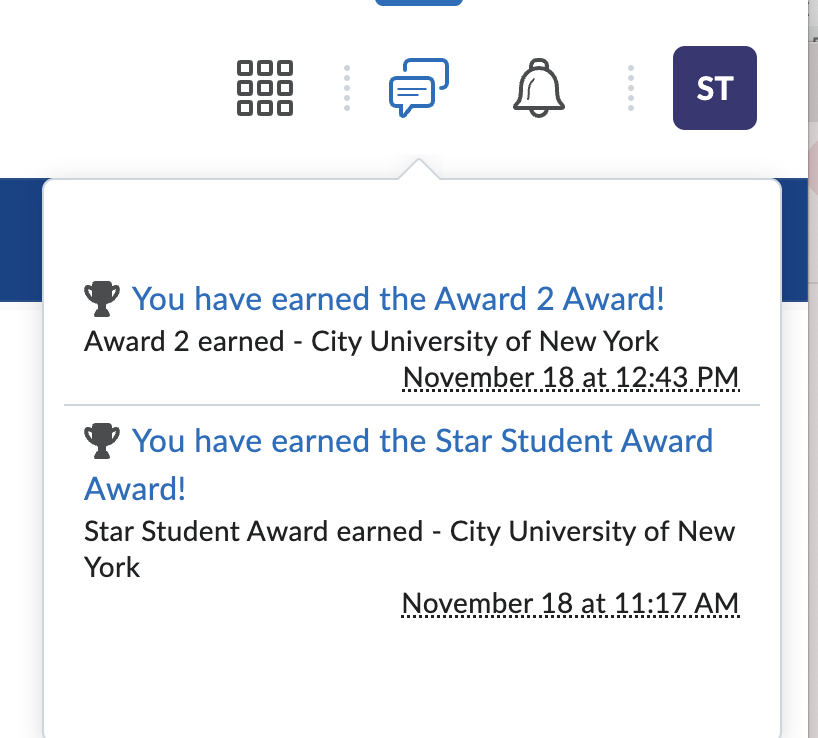
- Selecting their profile name (top-right) → Awards
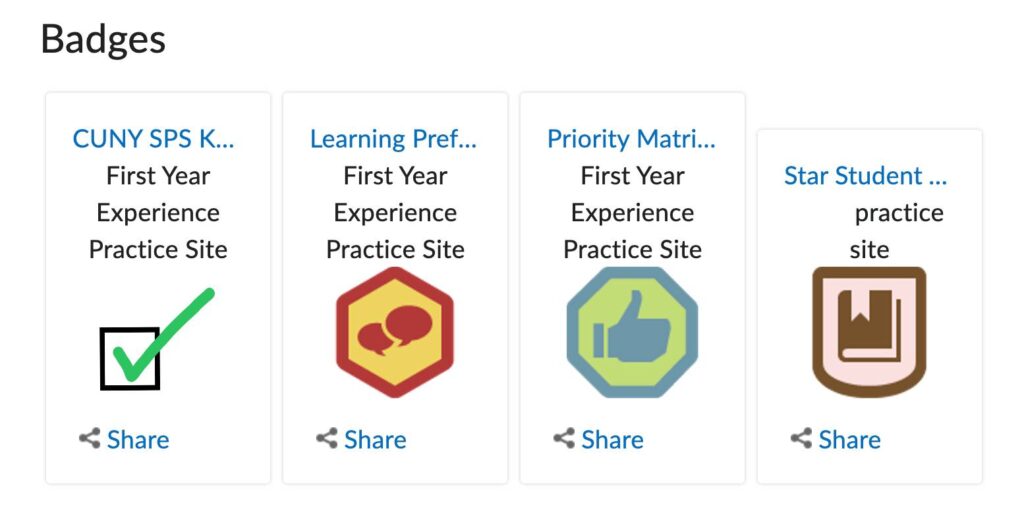
On the Awards page, students will see:
- Badges they’ve earned
- Badges they can work toward
- Badge descriptions and criteria
Additional Resources
If you’d like to explore more advanced options or see the full set of features available in the Awards tool, here are the official D2L resources:
- D2L Brightspace: Create and Manage Awards
- Video: How to Create a Badge
- Video: Manually Grant an Award
- Video: Add Release Condition to an Award
Still have questions? Email us at FacultySupport@sps.cuny.edu. We’re here to help!
Was this helpful?
0 / 0