

This guide provides best practices and step-by-step instructions for setting and updating discussion dates in Brightspace to support student engagement. Please note that if discussion due dates were previously entered in the Content area, those dates should now automatically appear within the Discussions tool.
Recommendations for Discussion Dates
Due Dates
As of the December 2025 Brightspace release, instructors can set a due date for a learner’s first post directly within a Discussion topic. This enhancement makes Discussions due dates function more like due dates in Assignments and Quizzes and improves consistency across course activities.
Setting Discussion Due Date on First Post
Brightspace now supports setting a due date for a student’s initial discussion contribution, whether that contribution is a new thread or a reply:
- From the course navigation bar, select Discussions.

- Locate the discussion topic you want to update, then select the chevron icon and Edit Topic.
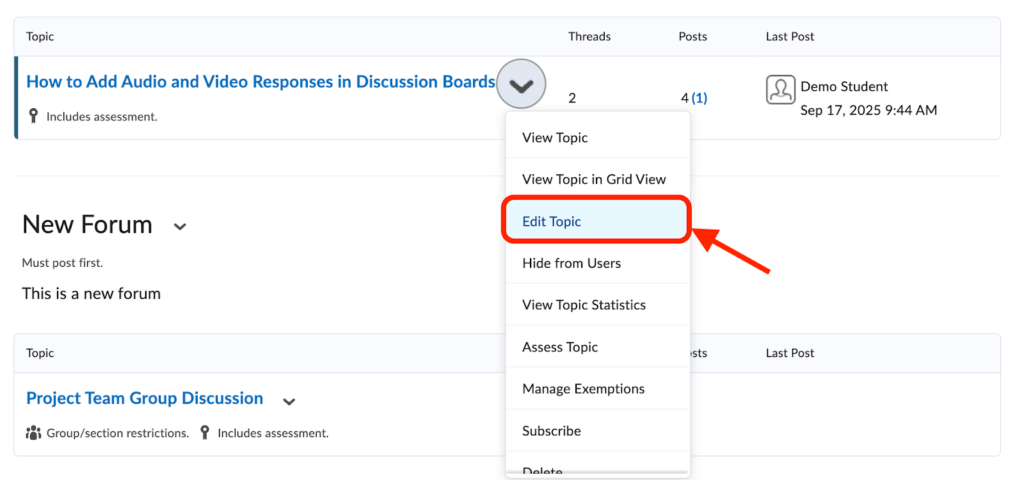
- On the editing page, set the due date for the first post for this discussion topic.
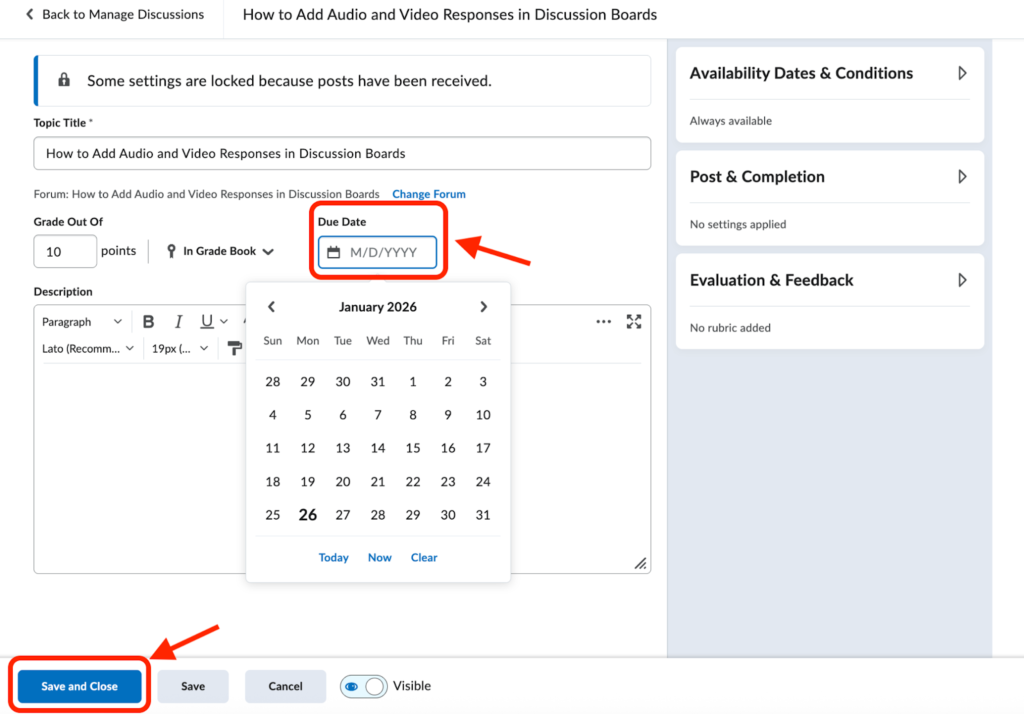
- Select Save and Close.
Note: The due date applies only to the first post. Brightspace does not currently support separate due dates for follow-up replies or multi-phase discussion participation. As a result, replies submitted after the initial due date may appear as late in the grading view, even if they align with the intended discussion timeline.
Linking Discussions in Content Module (Optional)
While it is no longer necessary to link discussions in Content modules to manage due dates, instructors may still choose to add discussion links to modules to support course organization and student navigation.
To add a discussion to a module:
- Go to Content and open the desired module.

- Select Add Existing Activities → Discussions.
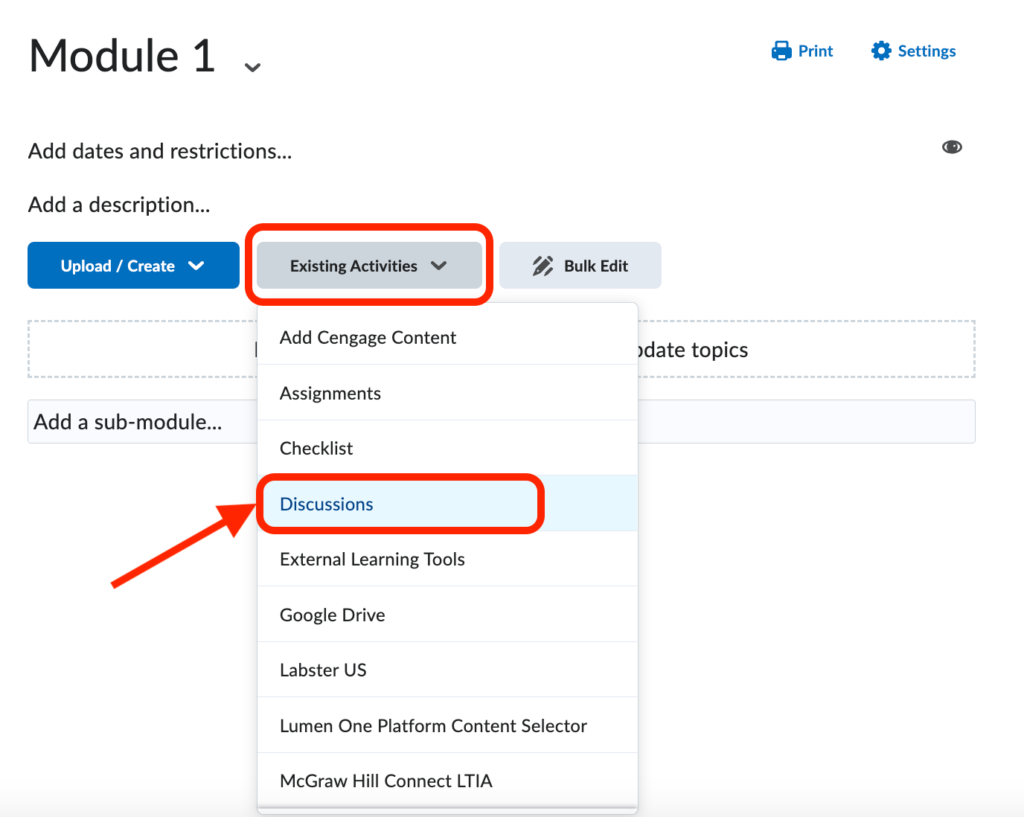
- Choose the appropriate discussion topic.
Note: If a due date was previously set for a discussion from the Content area, that date is now automatically reflected on the discussion topic itself. Instructors can review or update the due date directly from the Discussions tool.
Availability Dates
The Brightspace Discussions tool allows you to restrict a discussion topic’s availability using Start and End dates. Many faculty prefer that students refrain from posting in a discussion before its content module; start dates are the perfect tool. When you set availability dates for a discussion topic, there are three options for how the topic is displayed to students when it is unavailable:
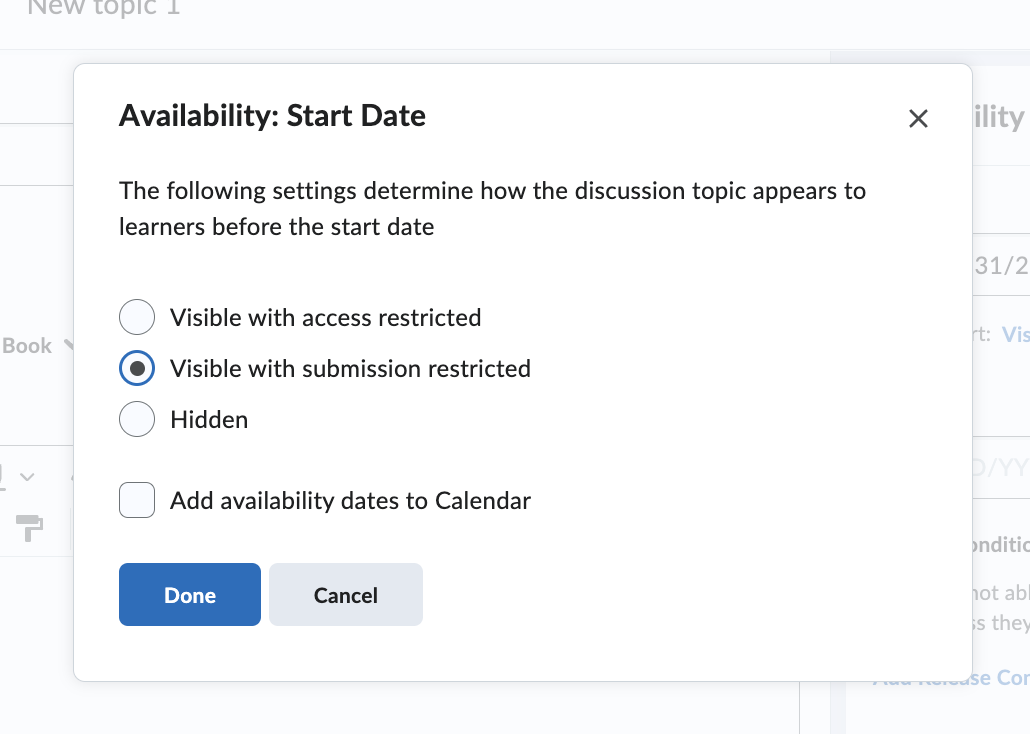
- Visible with access restricted: Learners can see the topic before or after the start or end date but cannot access it. (They see only the title.)
- Visible with submission restricted: Learners can view the topic, including the prompt, and open it, but cannot post new threads or replies, making the discussion read-only.
- Hidden: The topic remains completely hidden from learners until the start or end date. Also, the discussion is not displayed in the course calendar, and a start date notification will only be sent on the specified start date. (Students will not get prior notice of an upcoming discussion.)
If you choose to restrict the availability of a discussion, we recommend using the second option, Visible with Submission Restricted, to allow learners to view the discussion details while restricting their ability to post before the start date.
We do not recommend the use of end dates, however, if you choose to set an end date, it is especially important to select the Visible with Submission Restricted setting so that students can still read past discussions when they are reviewing for summative assessments.
How to Set Discussion Availability Dates
- From the course navigation bar, choose Discussions.

- Click the chevron icon beside the discussion title and select Edit Topic.
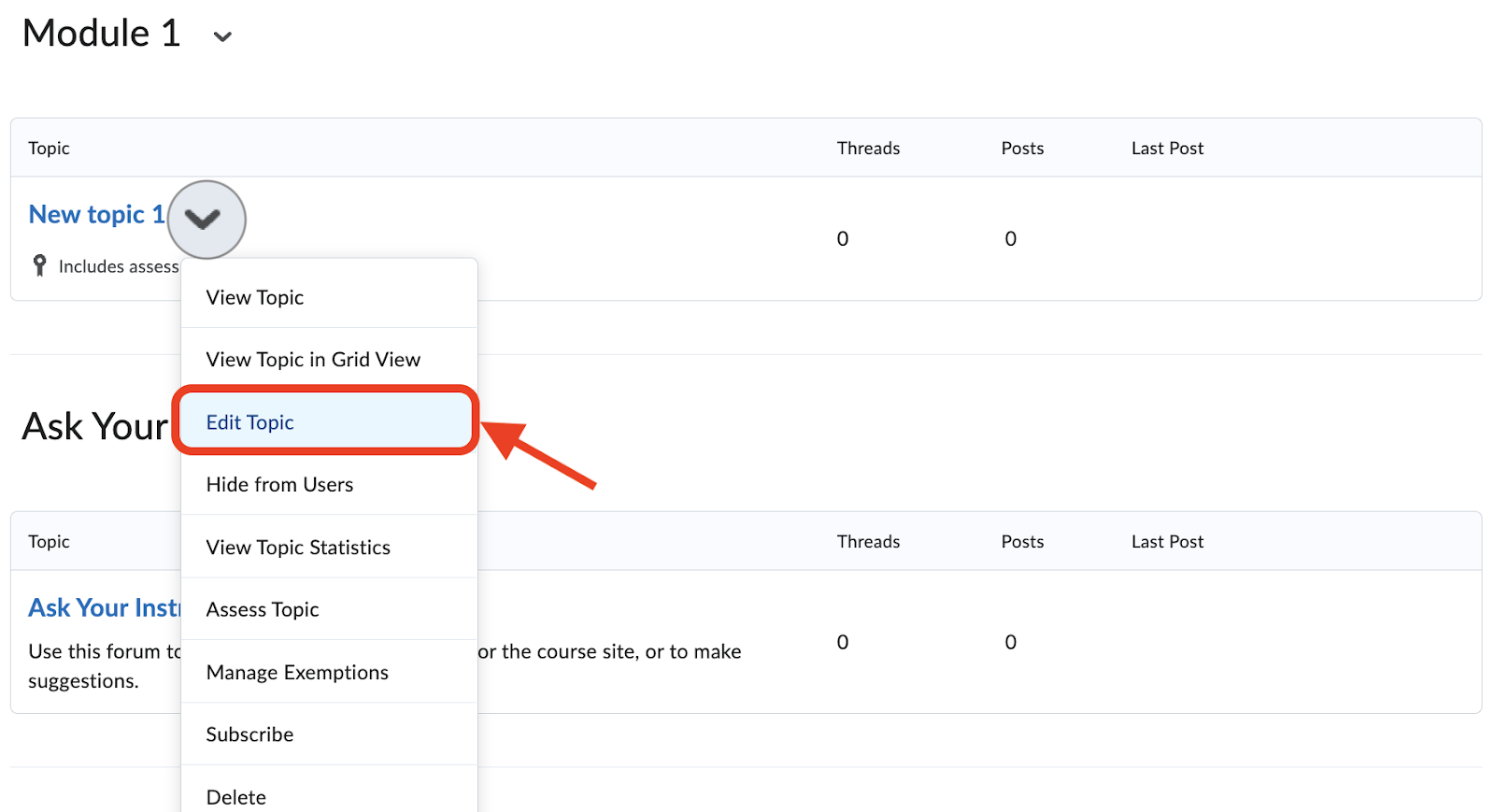
- On the next page, choose Availability Dates & Conditions to set up dates.
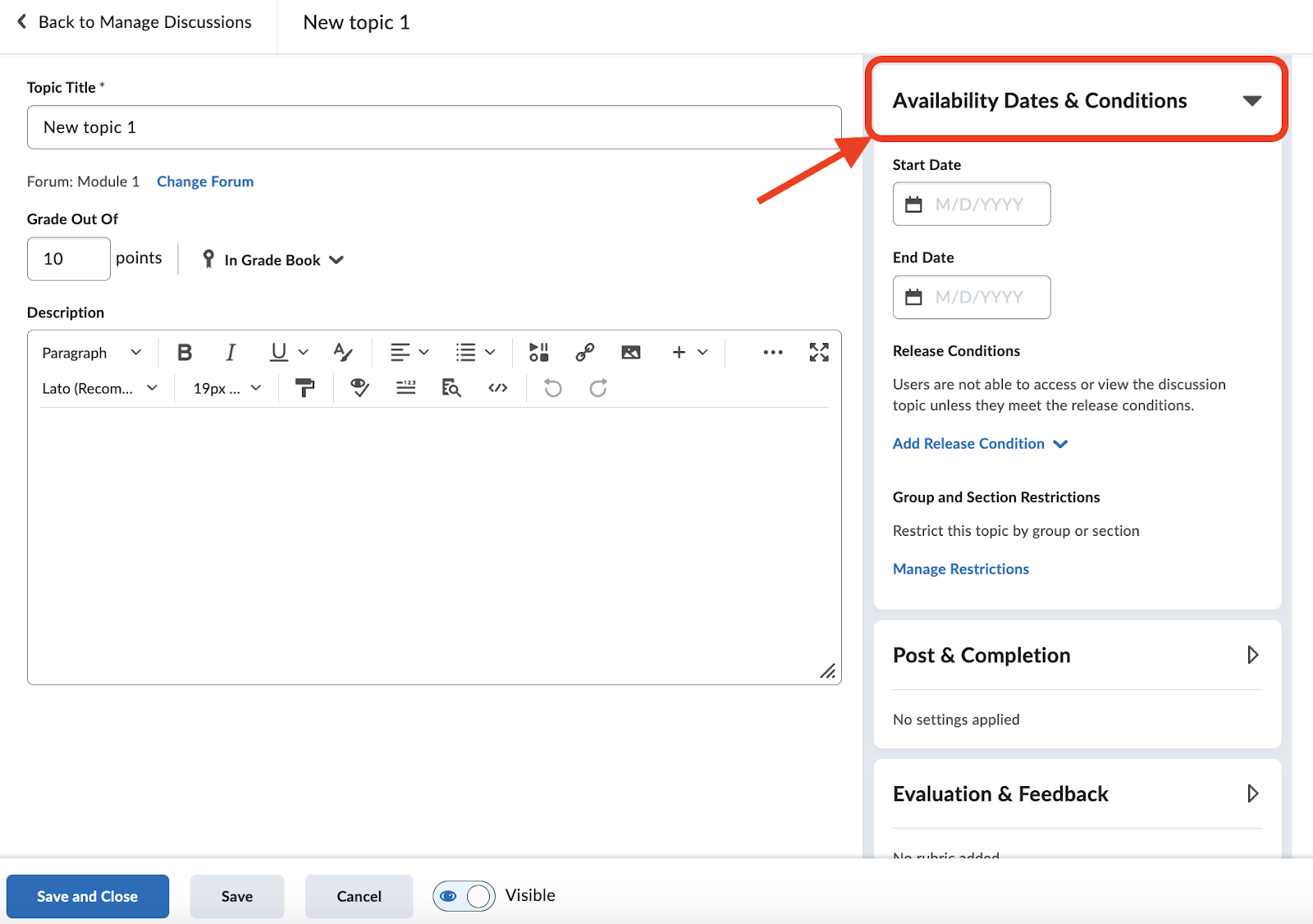
- Enter a Start Date for the discussion topic.
- Below the date fields, you can apply additional restriction options. We recommend selecting “Visible with submission restricted” and ticking the box to “Add availability dates to Calendar”. We do not recommend using End Dates, but you may set these here as well.
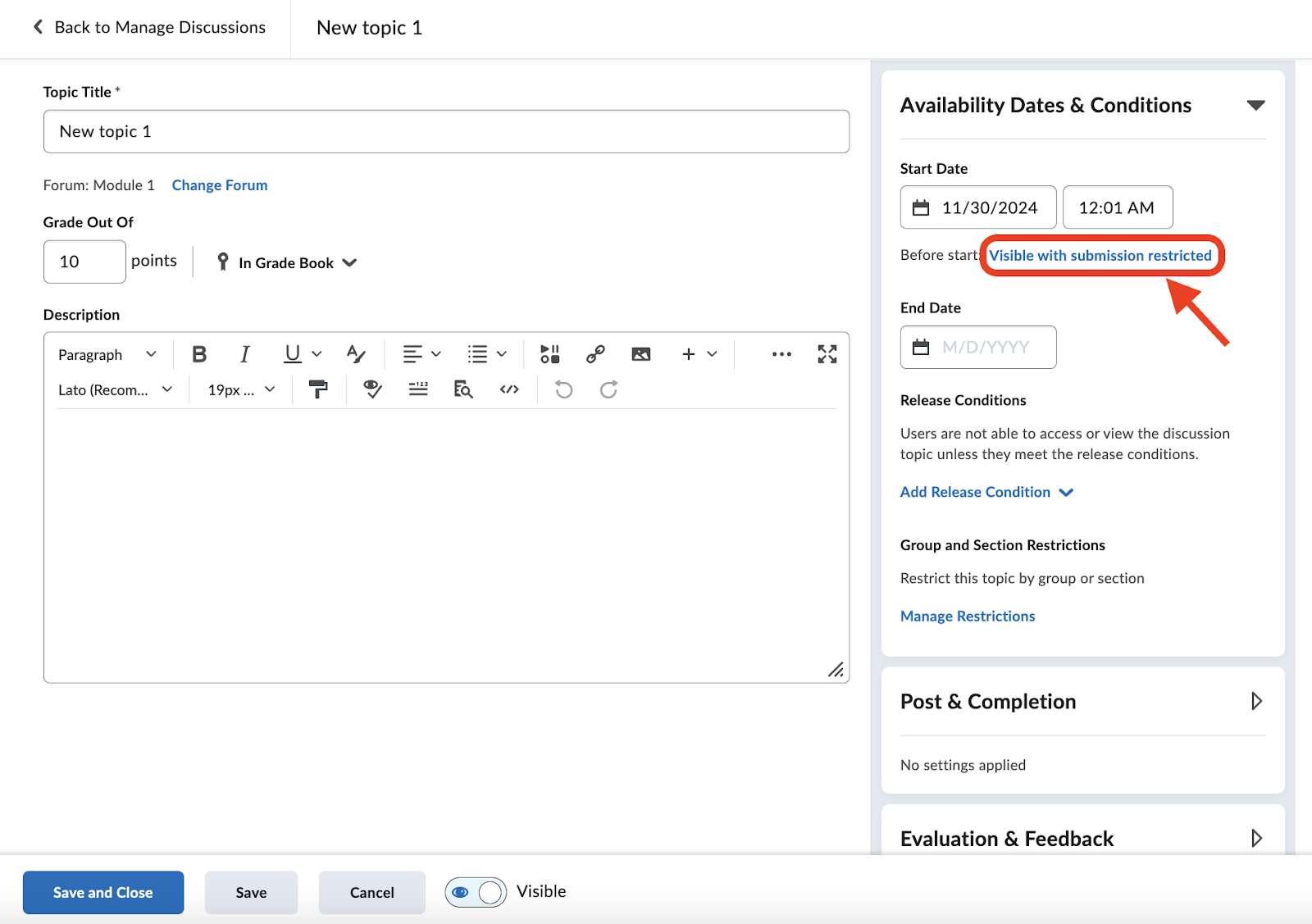
6. Save the changes before exiting.
Updating Discussion Dates
Due Dates
Discussion due dates can be updated directly within the discussion settings. When a discussion topic has also been added to a content module, any due date changes will automatically sync, whether the date is edited from the content module link or from the discussion topic itself. See instructions in Setting Discussion Due Date on First Post.
Availability Dates
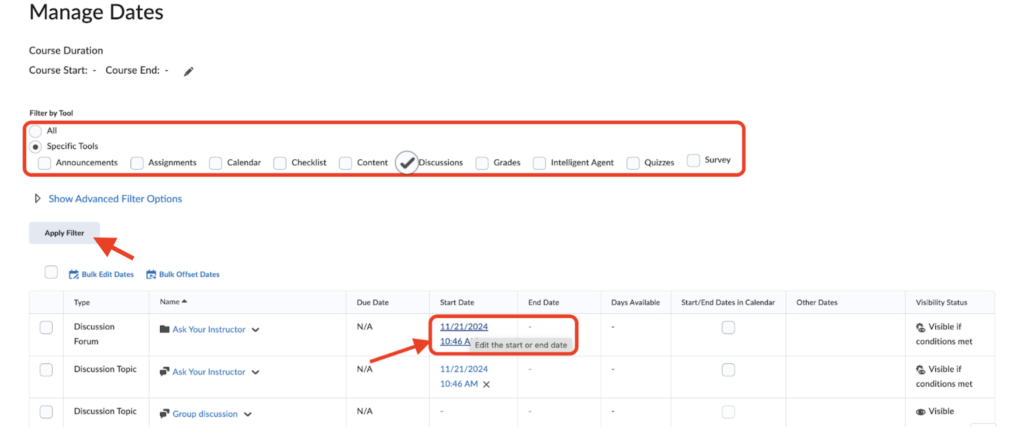
Discussion availability dates will be displayed in the Manage Dates table and can be updated either using the bulk offset dates tool when all the dates in the course are updated for the new semester, or individually by filtering the table to display only the discussions and clicking into the start date for each one to update it.
Using the Manage Dates tool to update discussion availability dates
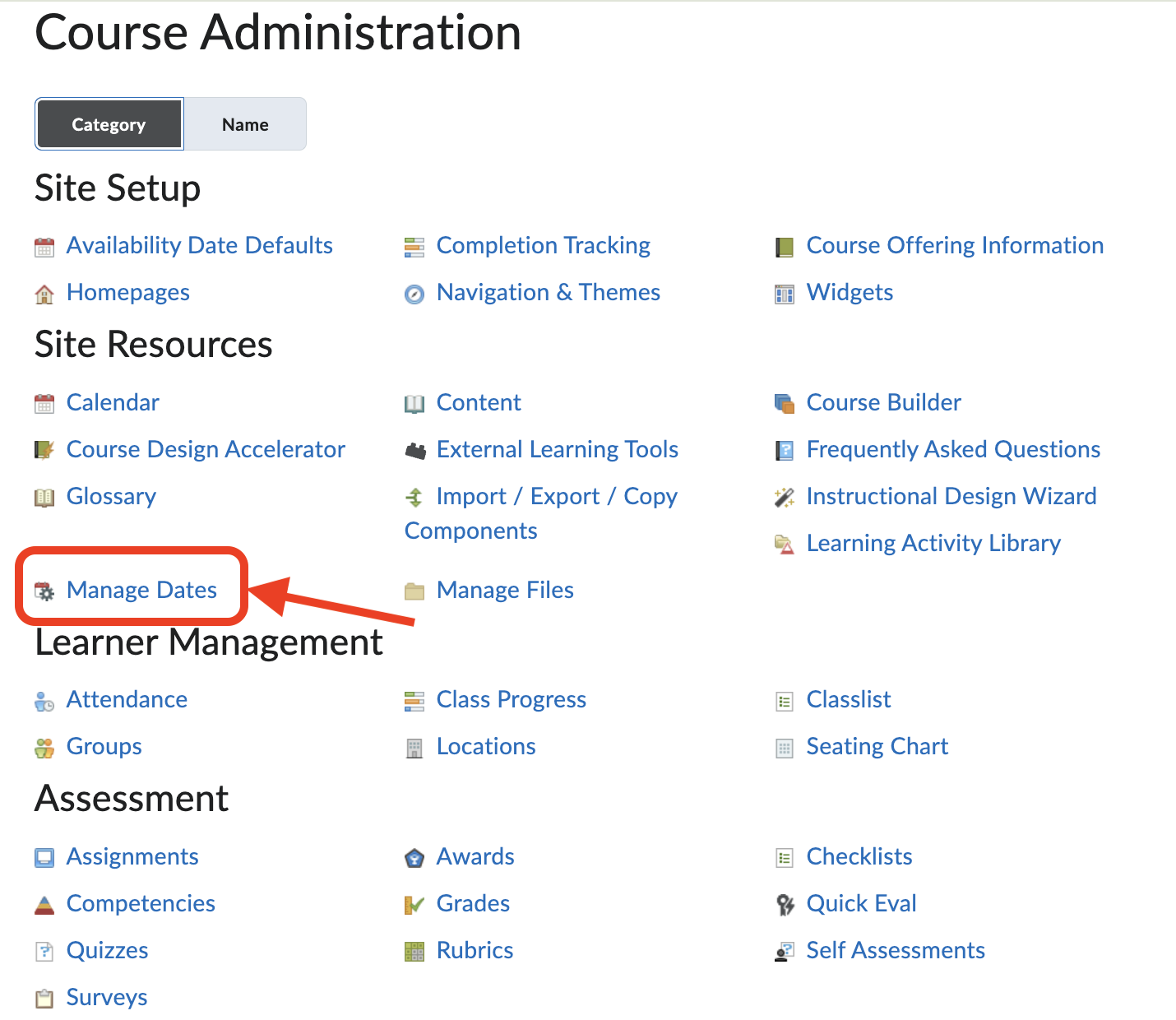
- From the course navigation bar, select Tools → Course Admin.
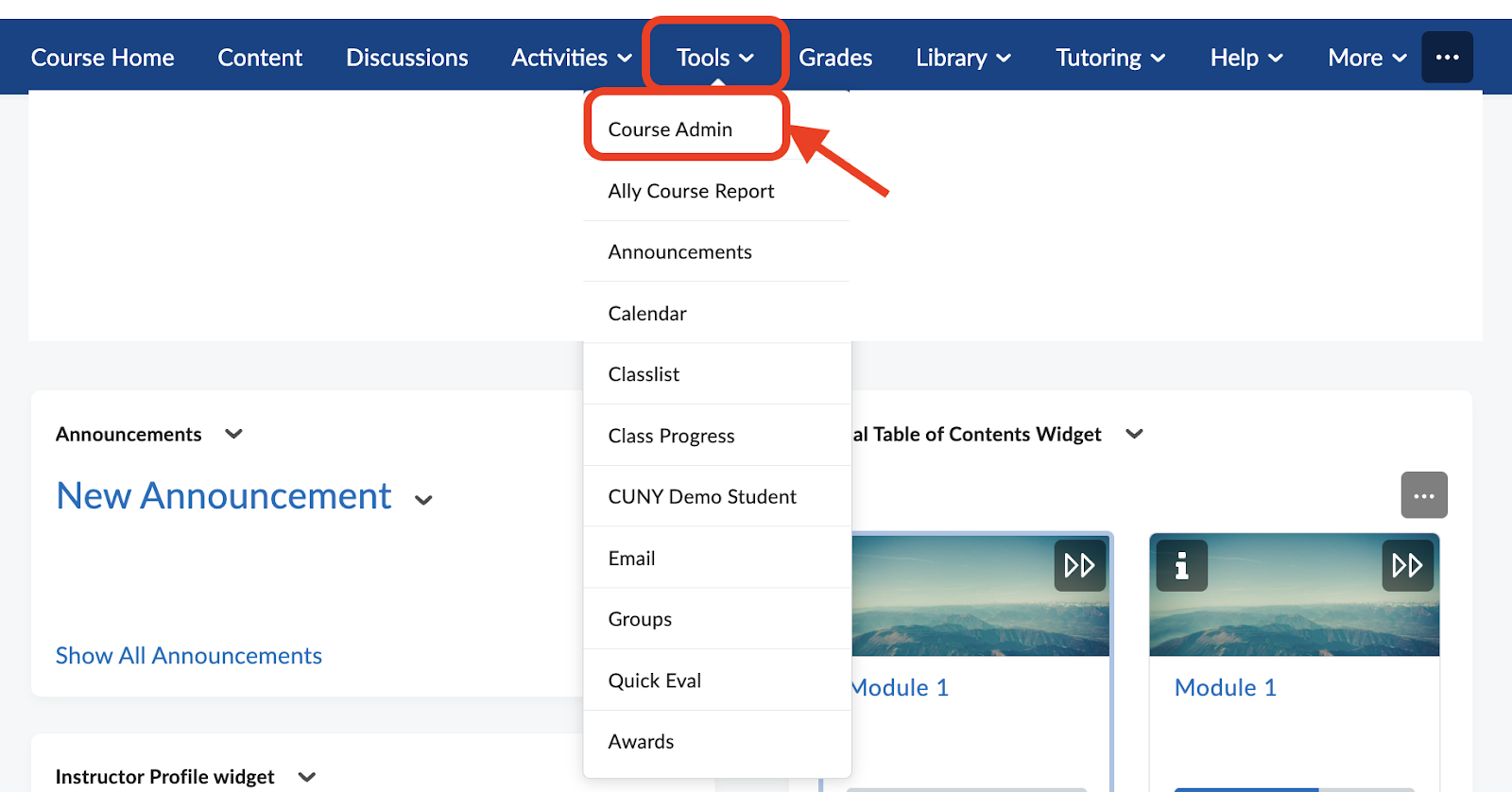
- On the next page, choose Manage Dates.
- Filter by Discussions to view. Click on the start date that you’d like to modify.
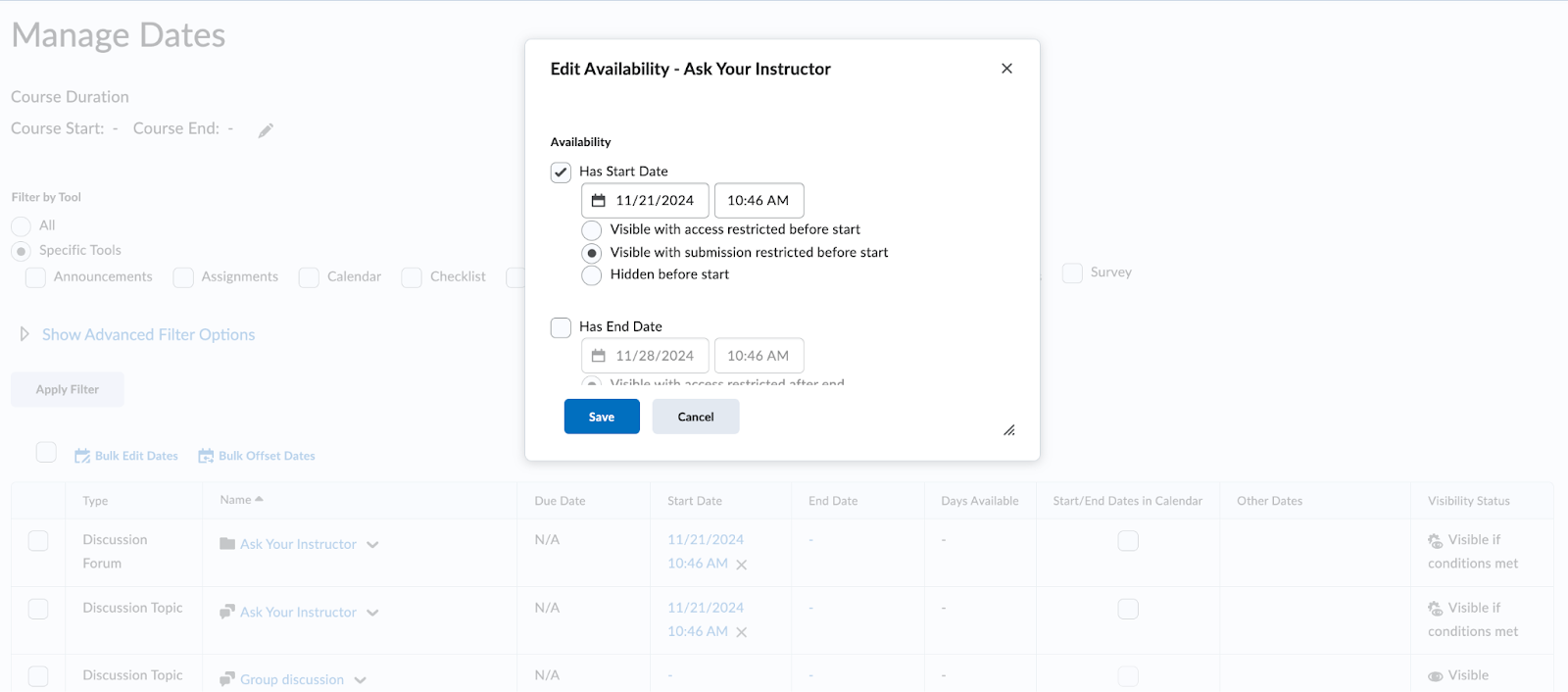
Click Save to proceed.
Still have questions? Email us at FacultySupport@sps.cuny.edu. We’re here to help!
Was this helpful?
3 / 4