

Overview
Creating an accessible Word document ensures that your content is readable by everyone. When a document contains visual elements, images or graphics for example, and they contain meaningful information, every learner should have access to that content.

Add Alternative Text (Alt Text) to Images
Visuals need a text-based description so they can be communicated to users with visual impairments. Here’s how to add alt text:
1. Right-click an image and select “View Alt Text”
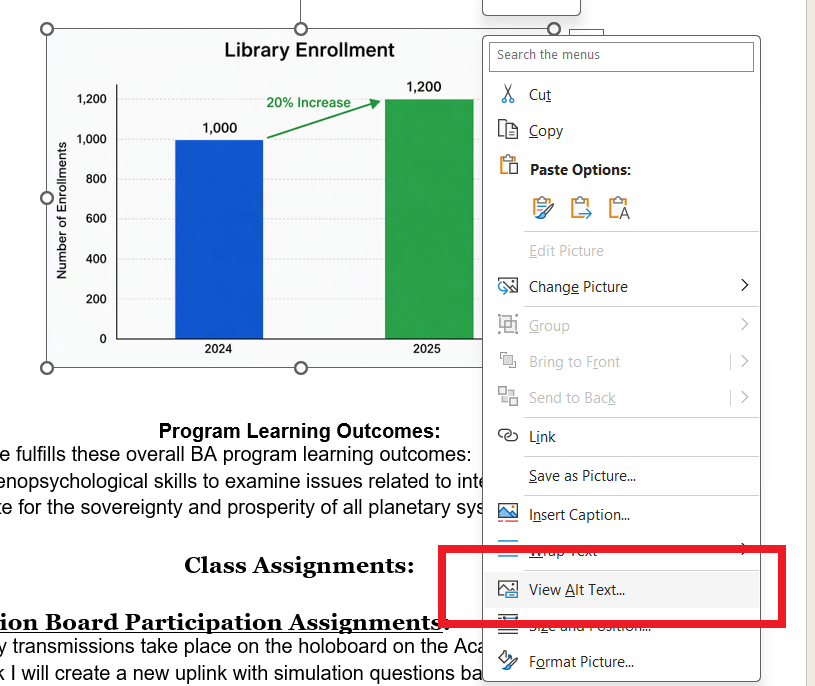
2. Writing Alt Text: Be concise, but include all the information communicated visually in the image or graph. Ex., instead of “Image of a chart,” use “Bar chart showing a 20% increase in library enrollment from 2024 to 2025.”
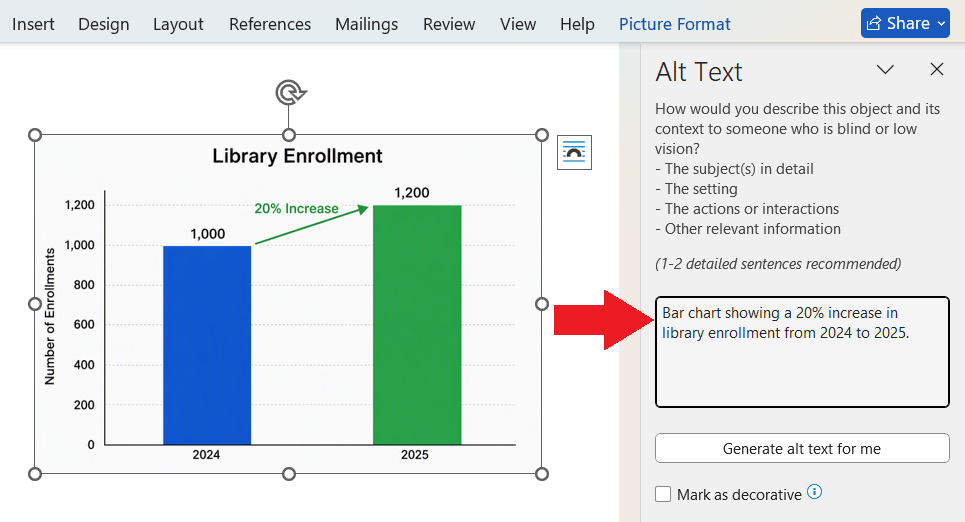
3. Decorative Images: If an image is purely for aesthetics (like a border or swirl), check the “Mark as decorative” box.
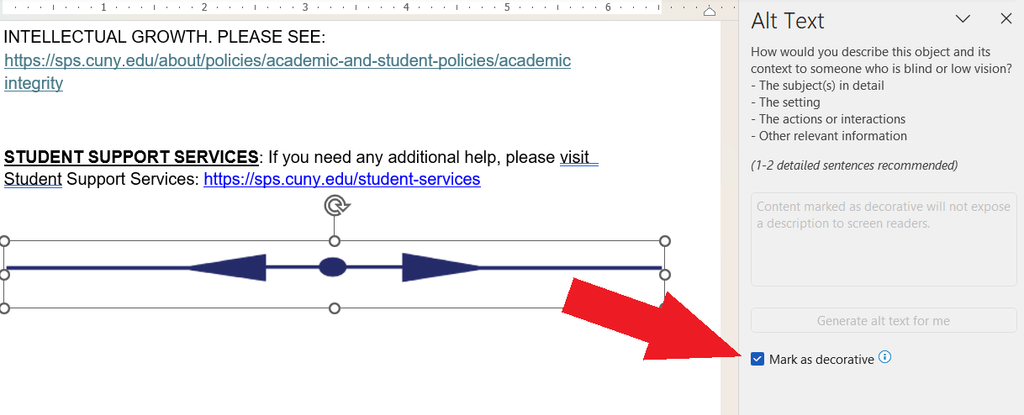
If you have described the image in the main text, avoid repeating it in Alt Text. Instead mark the image as decorative or give it minimal label: With repeated content in the Alt Text, screen reader users will hear the same information twice, cluttering their experience.
Still have questions? Email us at FacultySupport@sps.cuny.edu. We’re here to help!
Was this helpful?
3 / 2