

Overview
Rubrics in Brightspace help instructors establish clear, consistent grading criteria for assignments, discussions, and other assessments. They support transparency for students and simplify the grading process.
This guide walks instructors through how to grade with rubrics. For instructions on how to create a new rubric see the Creating Rubrics in Brightspace teaching guide.
Step 1: Navigating to the Rubric on a Student Submission
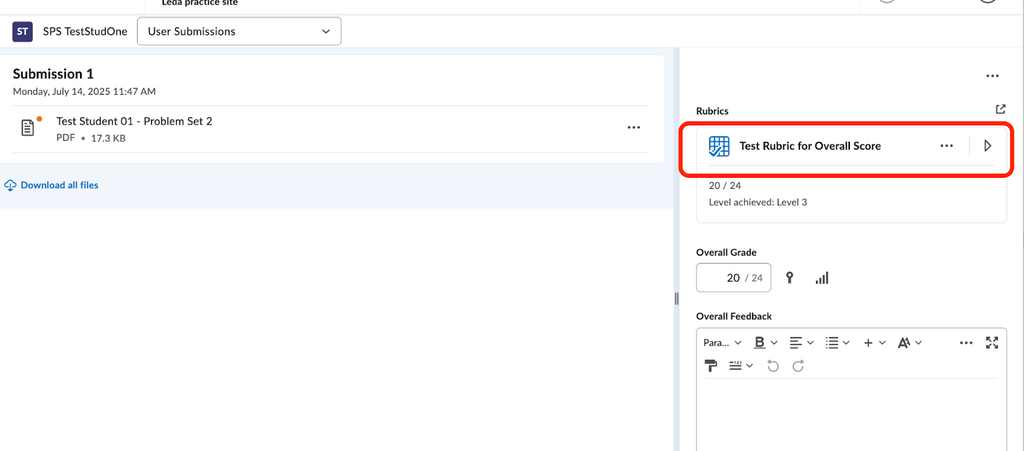
From the grading screen in a discussion or an assignment, you will see the attached rubric on the right side of the screen. Select this rubric (the title or the right-facing arrow) to expand it and use it to grade.
Step 2: Revealing the Level Description within Criteria
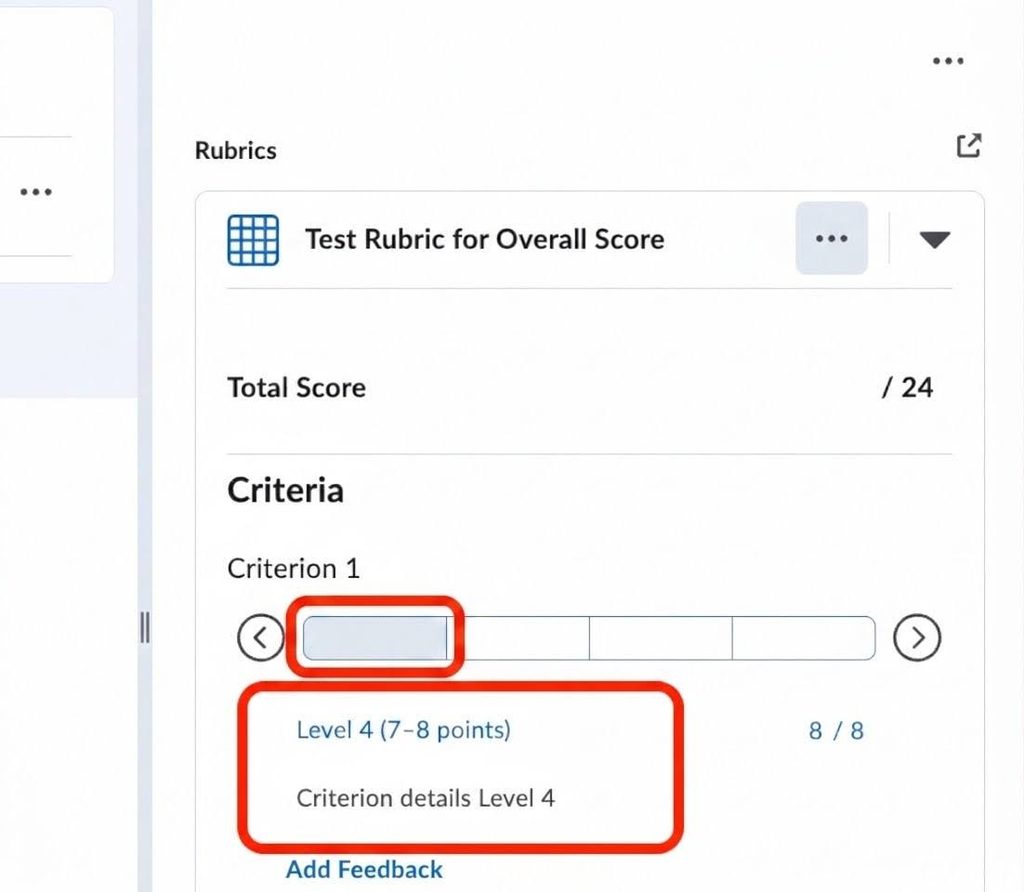
In the expanded rubric, the criteria will be available to grade. Navigate over each level to reveal the level description.

Step 3: Providing Feedback via the Rubric
Selecting the Level
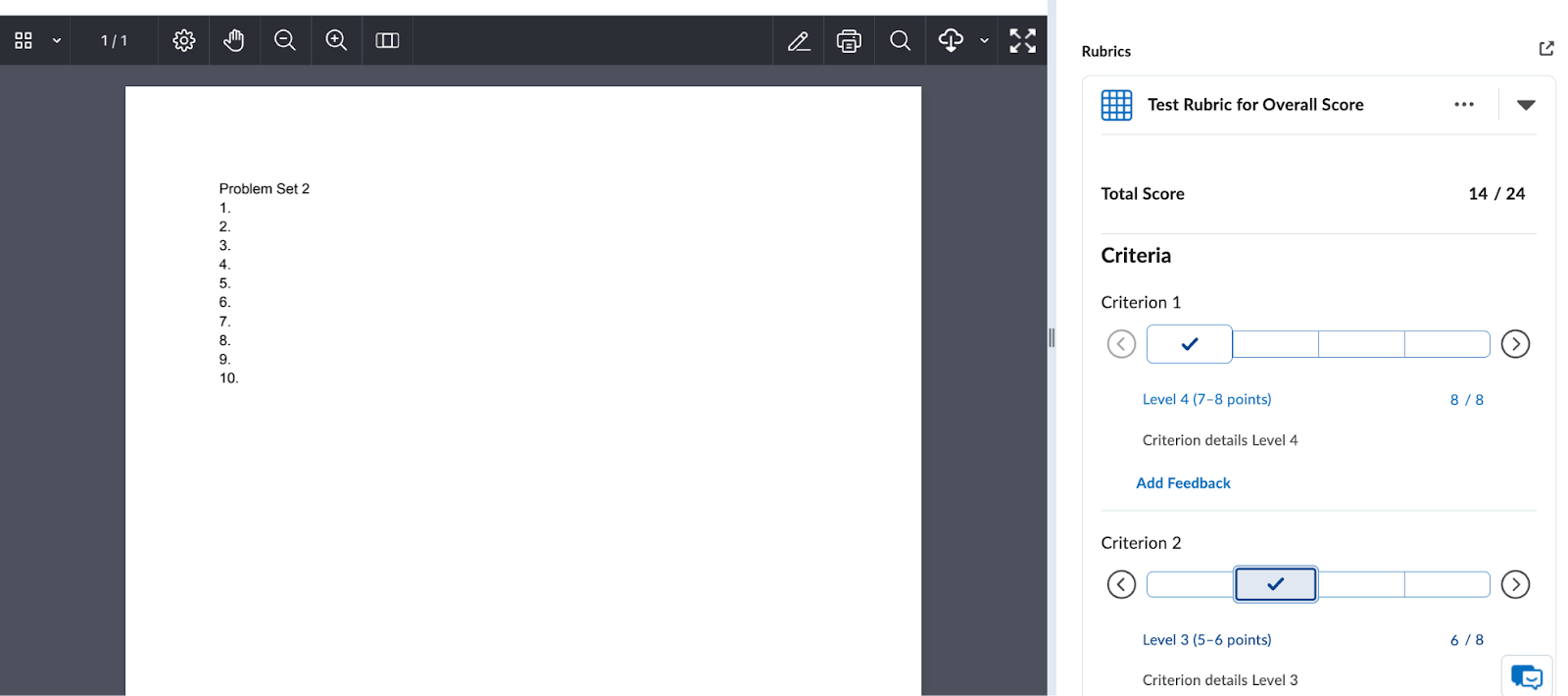
Select the appropriate levels as you are looking over the student submission. This will also lock the level description visibly in place. When you select each level, those points will automatically be added to the student’s score.
Providing Detailed Feedback
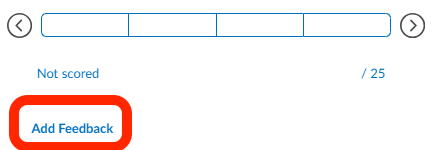
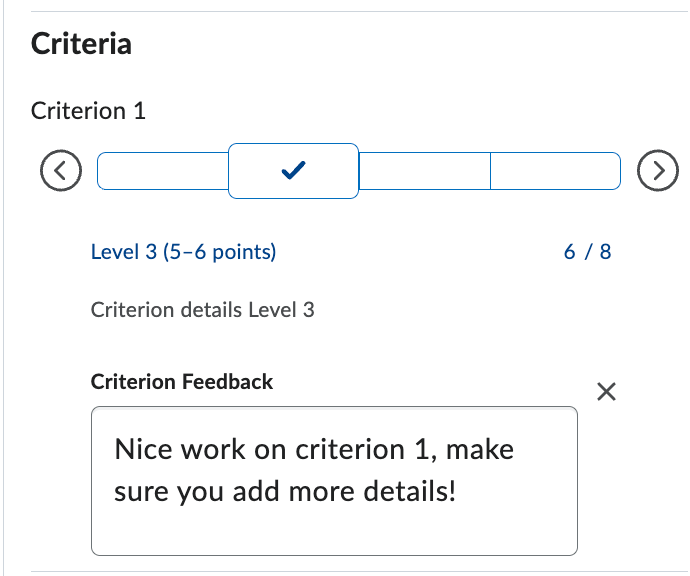
You can add more specific criterion level feedback by clicking Add Feedback.
Overriding Specific Points
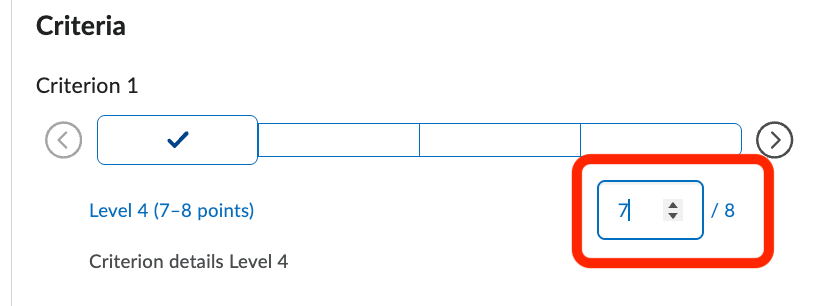
You can also override the level score by clicking into the box and entering a new score. This could be helpful if you want to give a half point or when you are grading with a range.
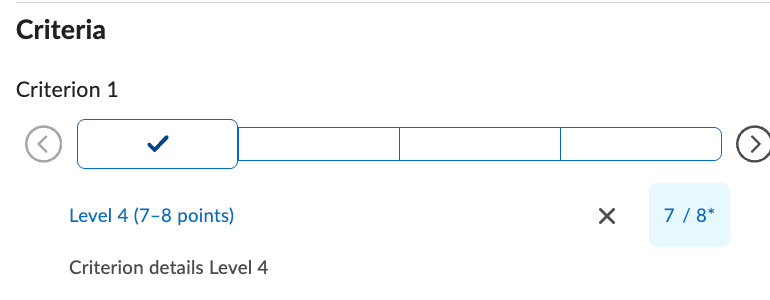
The score will show an asterisk to indicate it was overridden.
Step 4: Overall Grade
Once you have gone through all the criteria, you will see that the total has been calculated. This is displayed in the Overall Grade section. You are able to override this grade as needed by clicking on the score.

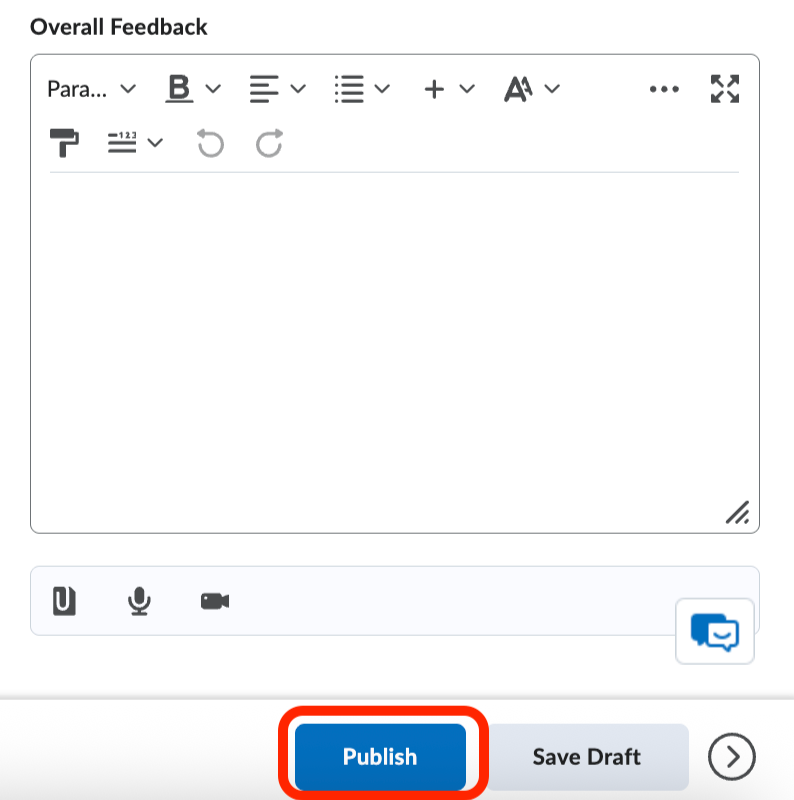
Underneath the total grade, there is an option to add Overall Feedback for the assignment. Once you are finished, click Publish.
Step 5: Student View
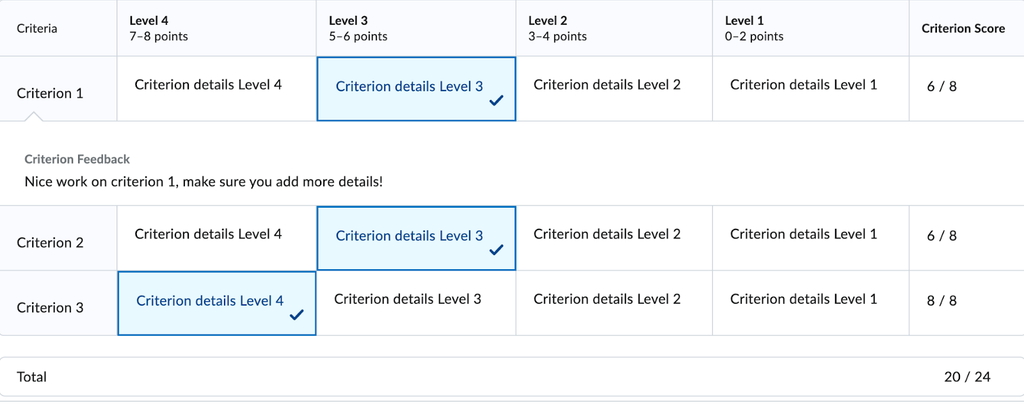
When a student enters their gradebook, they will see their total grade. They will also be able to look at the graded rubric so that they can understand more details about how they did on the assignment. When they click View Graded Rubric, the assignment rubric will open in a new window.

Here, the student can see how they scored on each criterion, any criterion feedback and their total score.
More Resources
For additional support with rubrics and assessment in Brightspace, explore the following resources:
Still have questions? Email us at FacultySupport@sps.cuny.edu. We’re here to help!
Was this helpful?
2 / 1

[…] Once your rubric is created, you can attach it to assignments or discussions to streamline grading. View our guide on Linking Rubrics to Course Activities in Brightspace. For more information on how to use a rubric to grade, see our guide on Grading with Rubrics in Brightspace. […]