

Overview
Creating an accessible Word document ensures that your content is readable by everyone. For many learners, tables are the quickest way to find and compare information. By ensuring those tables are accessible helps everyone navigate the document more effectively.

1. Accessible Tables
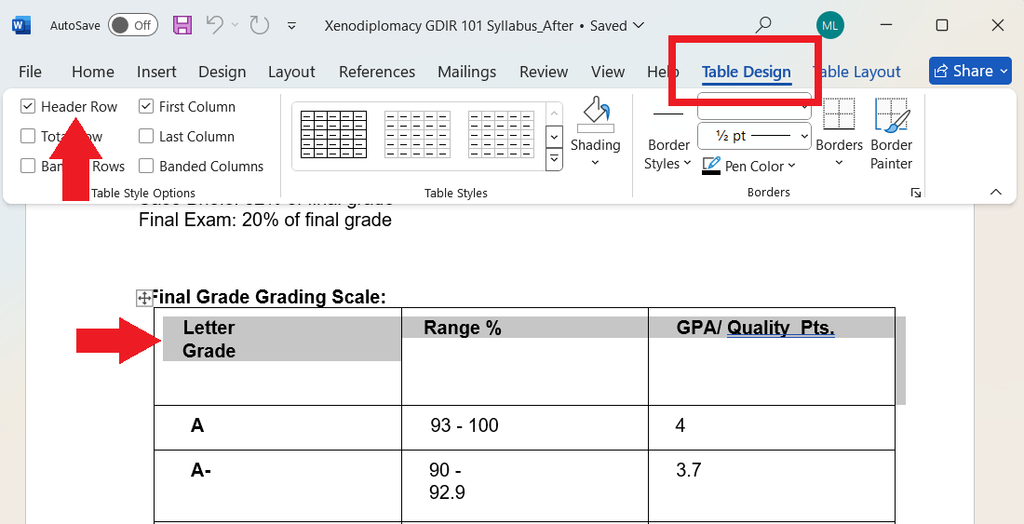
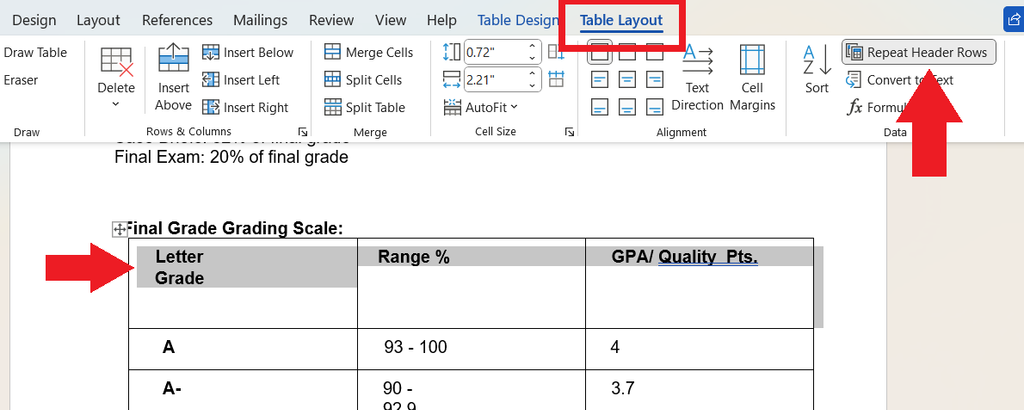
Two features of a table should be checked: the header row and the ‘repeat header row’ setting. Here’s how:
- Header Rows: Select your top row, go to Table Design, and ensure “Header Row” is checked. This tells the screen reader to repeat the column labels for every cell in that column.
- Repeat Header Rows: Select your top row, go to Table Layout, and ensure “Repeat header rows” is checked. This makes sure the header row appears again if the table runs to the next page.
Avoid Merged Cells: Merged or nested cells confuse the reading order for assistive software. Keep your table structure simple and uniform.
Avoid Using Empty Rows: Instead, to space out the content of a table, make rows larger. Select the table, go to the “Table Layout” tab and adjust “Table Row Height”.
Avoid Using Empty Gray Background Rows: Instead, to make rows distinct, add alternating background color to the rows with content. Select the table, go to the “Table Design” tab, select “Banded Rows” in the Table Style Options and then choose a Table Style with alternating row backgrounds.
Still have questions? Email us at FacultySupport@sps.cuny.edu. We’re here to help!
Was this helpful?
3 / 2